CrowdSec WAF QuickStart for NPMplus
Protect web applications running behind NPMplus (an enhanced Nginx Proxy Manager fork with built-in CrowdSec support) with CrowdSec's AppSec (WAF) Component.
This flow is mostly Docker Compose work: you download the NPMplus compose file, edit a few values, add an AppSec acquisition, start the stack, and enable AppSec from the NPMplus admin UI.
Prerequisites
- Docker and Docker Compose installed.
- Ports 80/TCP, 443/TCP, 443/UDP exposed to the internet; 81/TCP available for the admin interface (can stay internal).
- A text editor and
curlavailable on the host.
1. Download the NPMplus compose file
curl -L https://raw.githubusercontent.com/ZoeyVid/NPMplus/refs/heads/develop/compose.yaml \
    -o compose.yaml
2. Edit compose.yaml
Open the file and apply the following changes — none of these can be automated because you need to choose values for your environment:
- NPMplus service — set the environment variables:
TZ— your timezone (e.g.Europe/Berlin).ACME_EMAIL— your email for Let's Encrypt (e.g.admin@example.org).LOGROTATE=true— uncomment this line. Required for CrowdSec to parse NPMplus logs.
- CrowdSec service — uncomment the
crowdsecservice block. Leave theopenappsecline commented (appsecandopenappsecare different things).
3. Add the AppSec acquisition
Create the acquisition file on the host; the path must match how you mount the CrowdSec config volume in compose.yaml (the default NPMplus compose uses /opt/crowdsec/conf):
sudo mkdir -p /opt/crowdsec/conf/acquis.d
sudo tee /opt/crowdsec/conf/acquis.d/npmplus.yaml > /dev/null <<'EOF'
filenames:
  - /opt/npmplus/nginx/*.log
labels:
  type: npmplus
---
filenames:
  - /opt/npmplus/nginx/*.log
labels:
  type: modsecurity
---
listen_addr: 0.0.0.0:7422
appsec_configs:
  - crowdsecurity/appsec-default
name: appsec
source: appsec
labels:
  type: appsec
EOF
The first two blocks parse NPMplus access logs; the third turns on the AppSec Component on 0.0.0.0:7422 (needed because CrowdSec is inside a container — exposure is still limited to the Docker network, not the internet).
The upstream npmplus.yaml can evolve; the latest reference is in the NPMplus repo.
4. Start the stack
docker compose up -d
Install the AppSec collections inside the running CrowdSec container, then restart it so the new collections are picked up:
docker exec crowdsec cscli collections install \
    crowdsecurity/appsec-virtual-patching \
    crowdsecurity/appsec-generic-rules
docker restart crowdsec
Retrieve the initial NPMplus admin password from its logs:
sleep 60 && docker logs npmplus 2>&1 | grep -i password
Save this password — you'll need it in step 5.
5. Enable AppSec in NPMplus
Generate a bouncer API key
docker exec crowdsec cscli bouncers add npmplus -o raw
Copy the printed key.
Configure NPMplus
Edit the NPMplus CrowdSec configuration file — its location depends on your compose mounts, typically /opt/npmplus/crowdsec/crowdsec.conf:
ENABLED=true
API_KEY=<paste-the-key-from-above>
Restart NPMplus:
docker restart npmplus
Confirm NPMplus connects to CrowdSec:
docker logs npmplus 2>&1 | grep -i crowdsec
6. Verify
Hit an endpoint that should trip an AppSec rule (replace localhost with your server's address if different):
curl -I http://localhost/.env
You should get an HTTP/1.1 403 Forbidden response.
Check metrics inside the CrowdSec container:
docker exec crowdsec cscli metrics show appsec
Example metrics output
Appsec Metrics:
╭─────────────────┬───────────┬─────────╮
│  Appsec Engine  │ Processed │ Blocked │
├─────────────────┼───────────┼─────────┤
│ 0.0.0.0:7422/   │ 2         │ 1       │
╰─────────────────┴───────────┴─────────╯

Appsec '0.0.0.0:7422/' Rules Metrics:
╭─────────────────────────────────┬───────────╮
│             Rule ID             │ Triggered │
├─────────────────────────────────┼───────────┤
│ crowdsecurity/vpatch-env-access │ 1         │
╰─────────────────────────────────┴───────────╯
What just happened?
curlhit NPMplus at/.env.- The NPMplus bouncer forwarded the request to the AppSec Component inside the Docker network (on
crowdsec:7422). - AppSec matched the
vpatch-env-accessrule and answered403. - NPMplus served the ban page.
Log into the NPMplus admin UI
Open https://<server-ip>:81 and log in with the ACME_EMAIL you set in step 2 and the password you saved in step 4. You'll be prompted to change both on first login.
Monitor in the Console
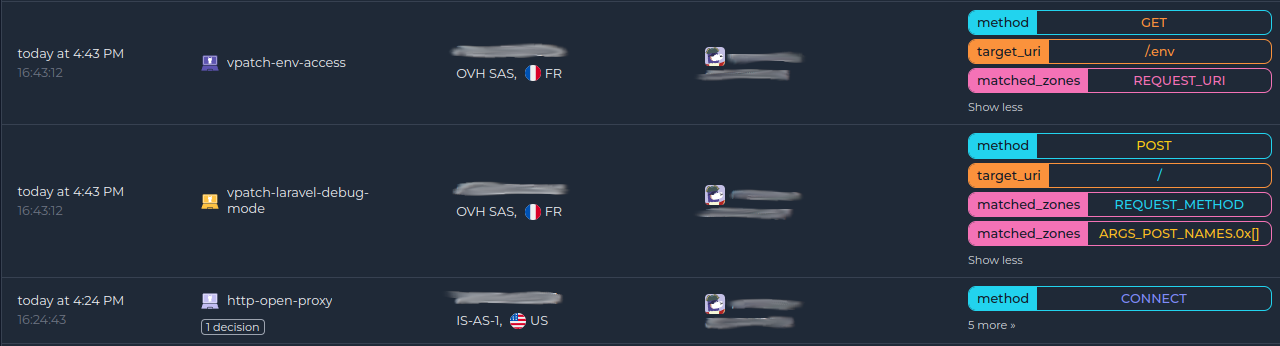
If you haven't enrolled the Security Engine yet, follow how to enroll in the Console. Once enrolled, AppSec alerts appear alongside the rest of your alerts:
Next steps
- Monitor WAF alerts with
docker exec crowdsec cscli alerts listor in the CrowdSec Console. - Review the AppSec troubleshooting guide if you need to investigate or refine the deployment.
- Explore WAF deployment strategies, rules syntax, rule creation, and benchmarks to go further.