Search and filter
An investigation rarely starts from a blank page: it starts from a clue - an IP in an incident report, a CVE from a scan, a scenario name in a colleague's message. Paste the clue, get the full picture.
Paste the clue
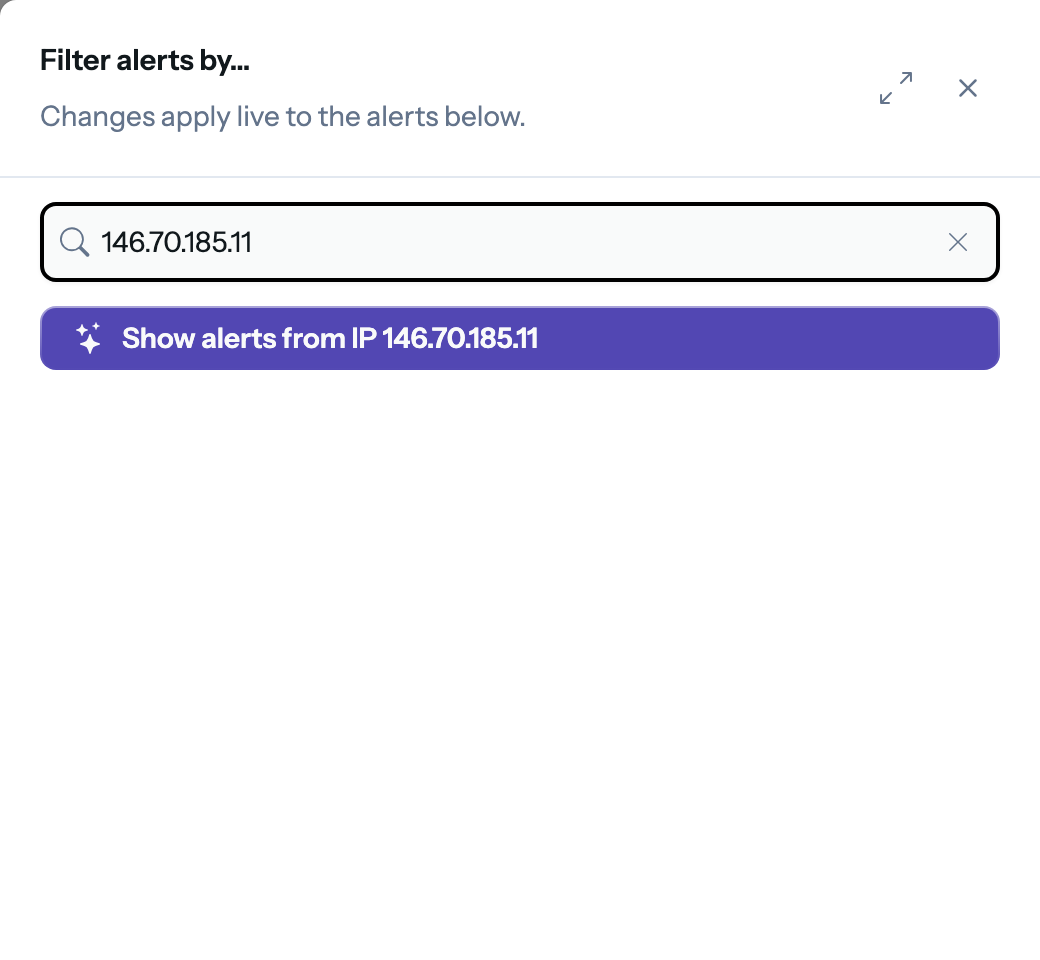
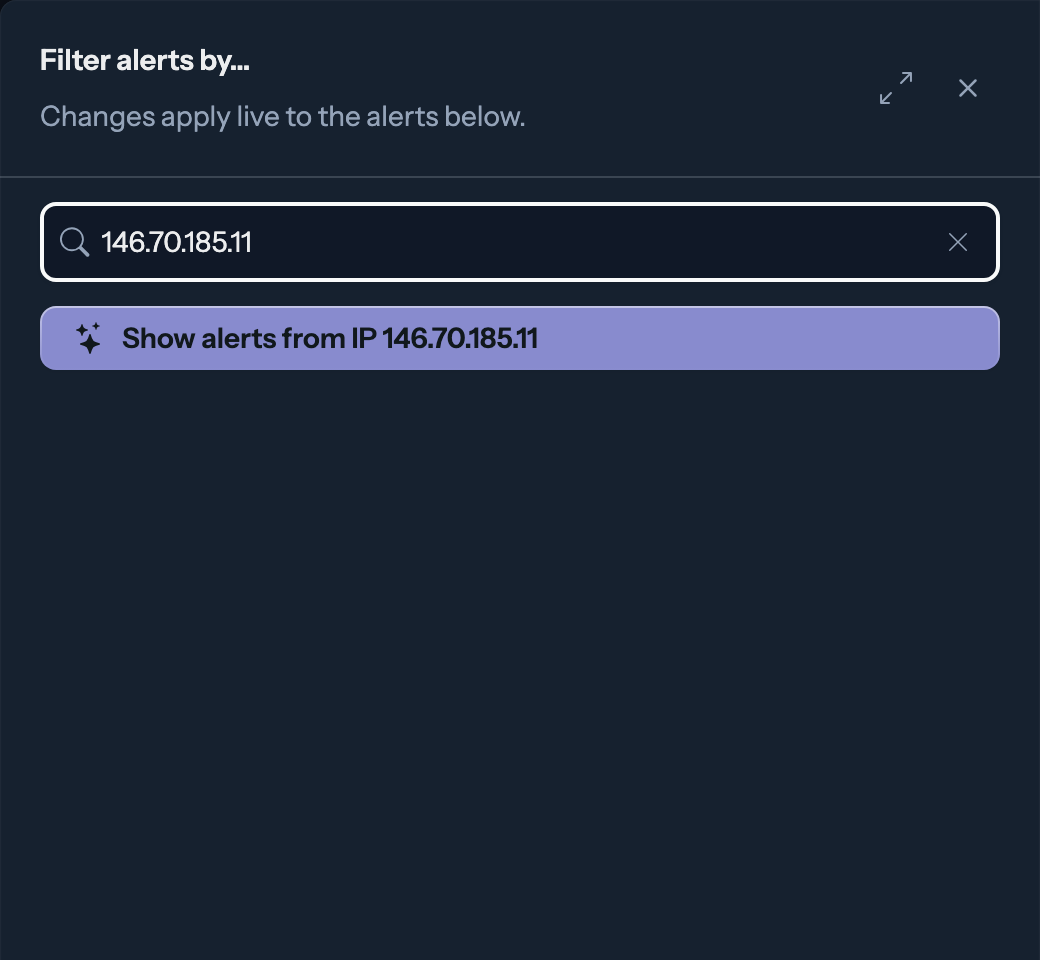
Open the filter drawer and paste your clue into the search field:
- An IP address (
203.0.113.42) - the Explorer offers to show every alert from that source. - A CIDR range (
203.0.113.0/24) - same, for the whole range. - A CVE identifier (
CVE-2021-44228) - every alert tied to attempts to exploit that vulnerability.
Press Enter or click the suggestion: the filter applies, and the charts redraw around your clue's activity.
Compose filters
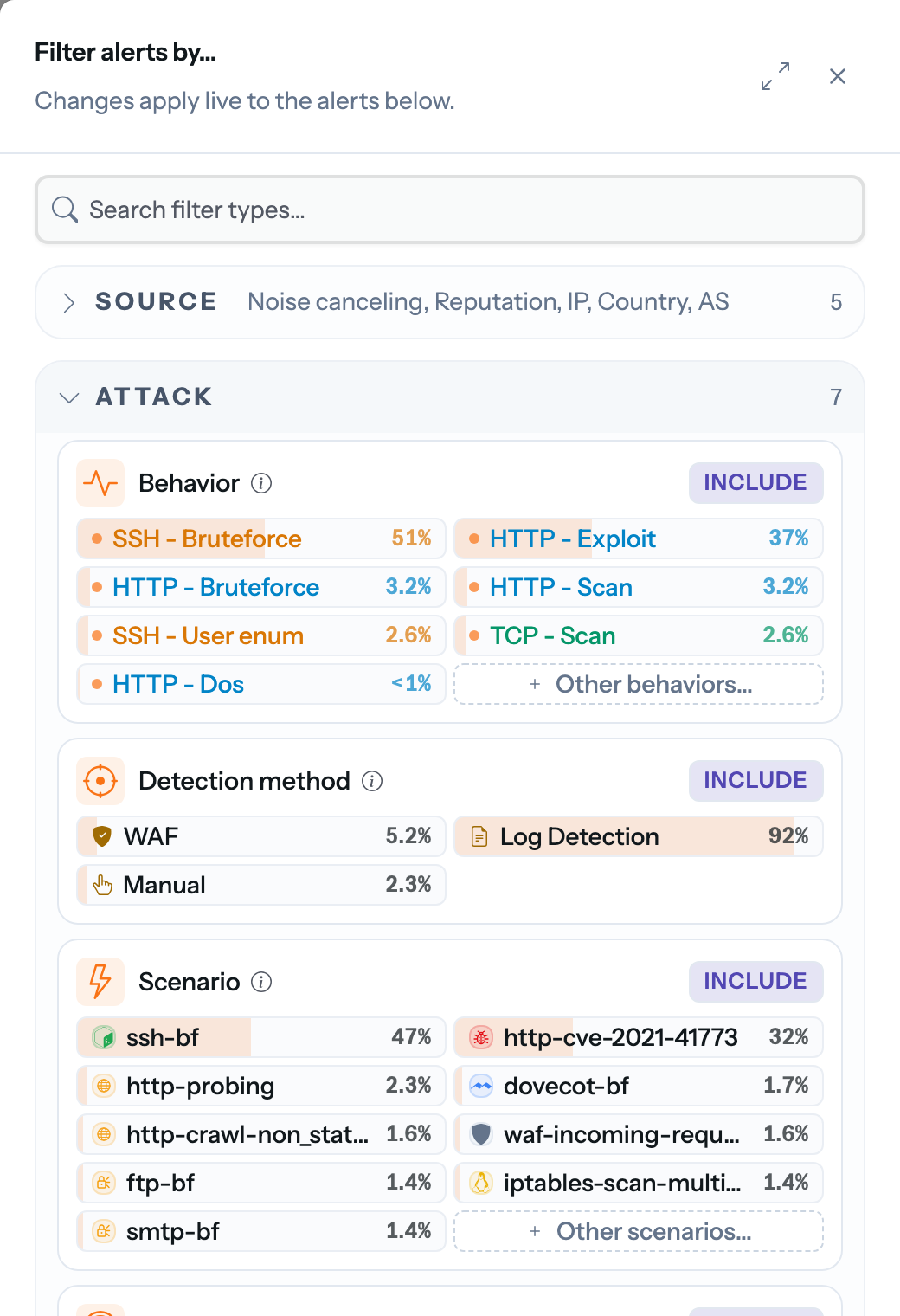
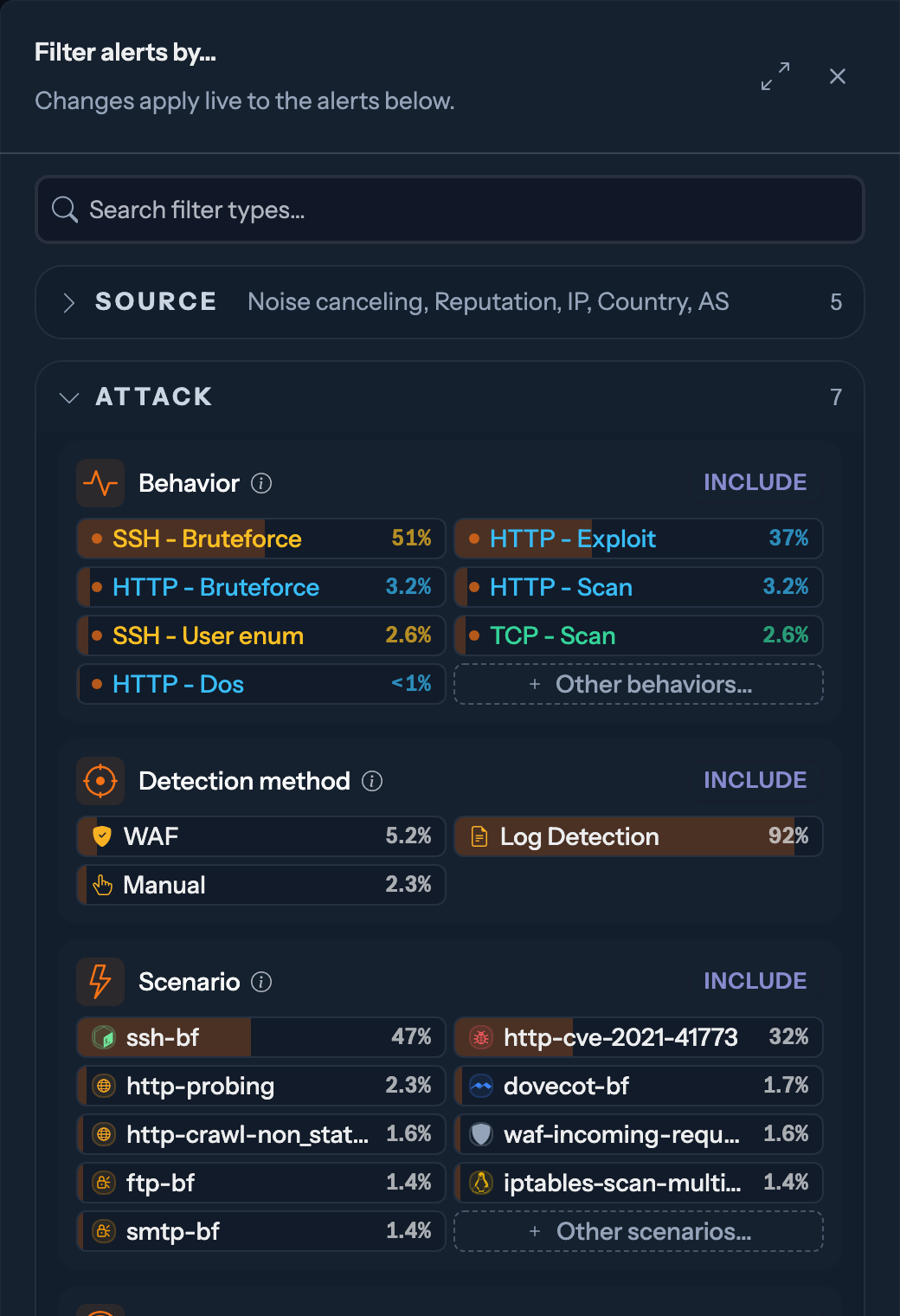
The drawer organizes filters by what they describe - the attacker, the attack, the target. Every list filter works in two directions: include narrows to the selected values, exclude removes them (a noisy scanner you already know about, a test engine). Active filters show as chips above the table; remove any of them with one click.
For scenarios, the picker also offers "Match every value containing...": type ssh and cover every ssh-related scenario, including ones that do not exist yet.
Every dimension you can filter on
Attacker side: source IP (single, range or CIDR), autonomous system, country. Attack side: behaviors and attack scenarios (both from the CrowdSec Hub), CVE, MITRE techniques. Target side: Security Engine names or tags, target IPs. And your own alert context tags, when configured.
Scope in time
The period bar drives everything. Shortcuts (1h, 24h, 3d, 7d, 30d and more), window-by-window navigation with the arrows, and "Last visit" to catch up on everything since you last opened the page. Dragging a range on any chart zooms into it.
Key considerations
- Filters, period and grouping are encoded in the URL: share the address and a colleague authenticated on the console sees the exact same slice.
- If a filter combination matches nothing, the empty state tells you whether your organization is quiet or your filters are too narrow - and offers to clear them.