Notification rule
Notification rules allow you to customize the alerts and notifications you receive from your CrowdSec Console. By setting up specific rules, you can ensure that you are only notified about events that are relevant to your organization. This guide will walk you through the process of creating a notification rule for your linked integration.
You need at least one integration linked to your CrowdSec Console to create a notification rule. If you haven't linked an integration yet, please refer to the Integrations Overview for more information on how to do so.
Create a notification rule
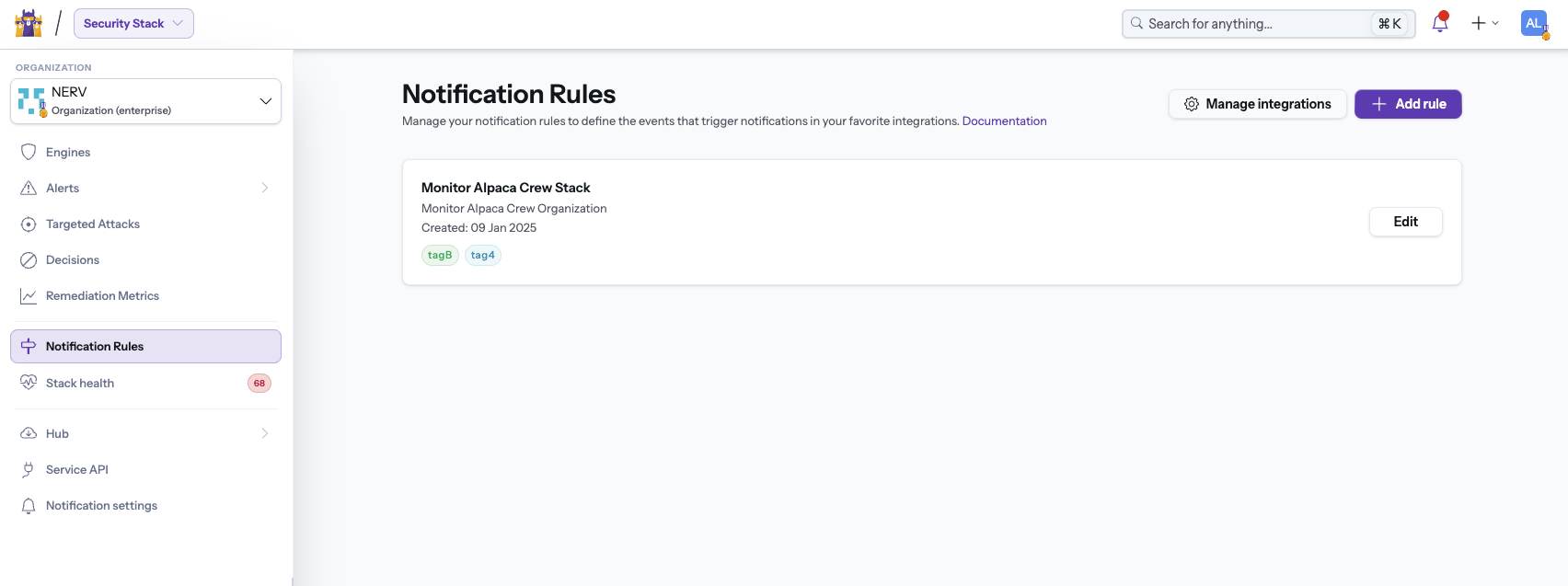
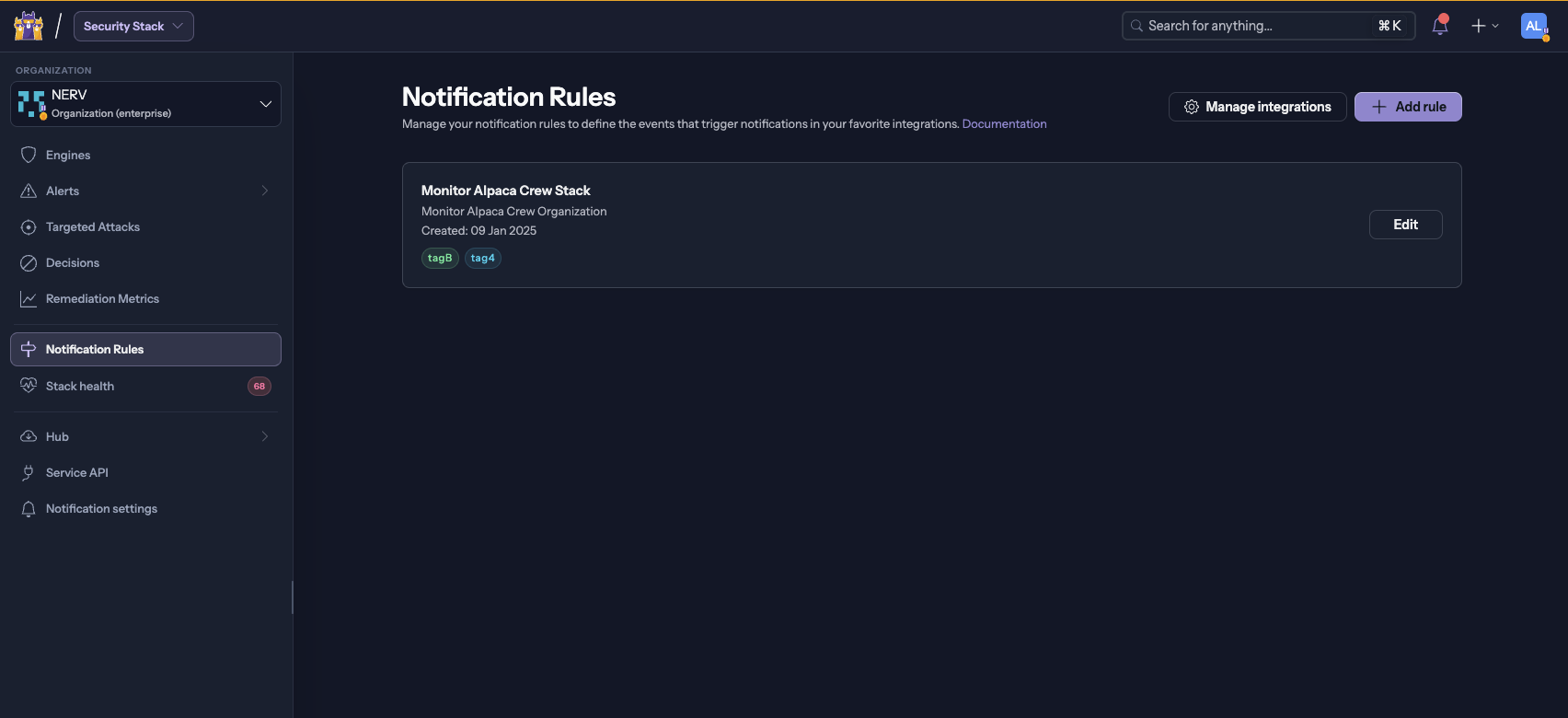
- In the CrowdSec Console, navigate to Notification Rules and click on Add Rule.
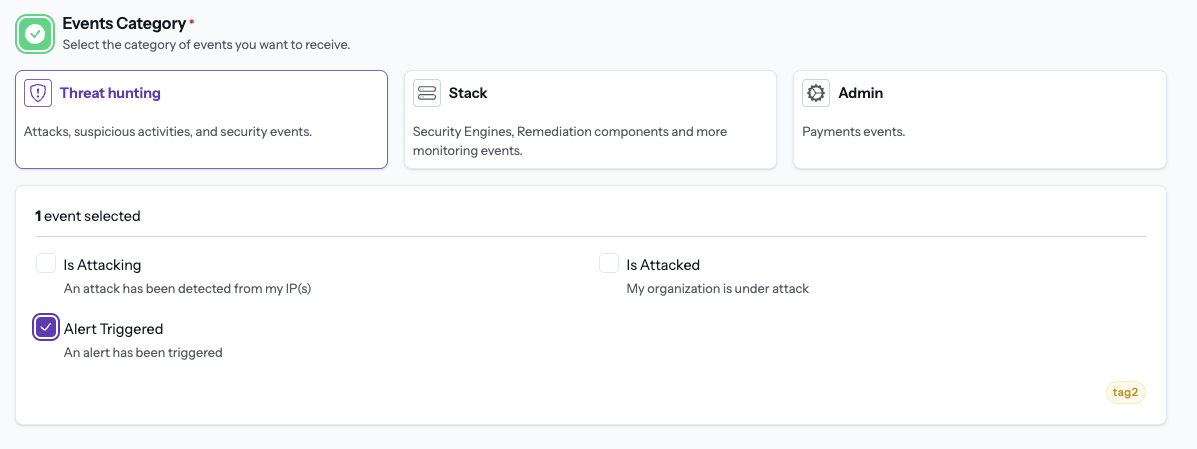
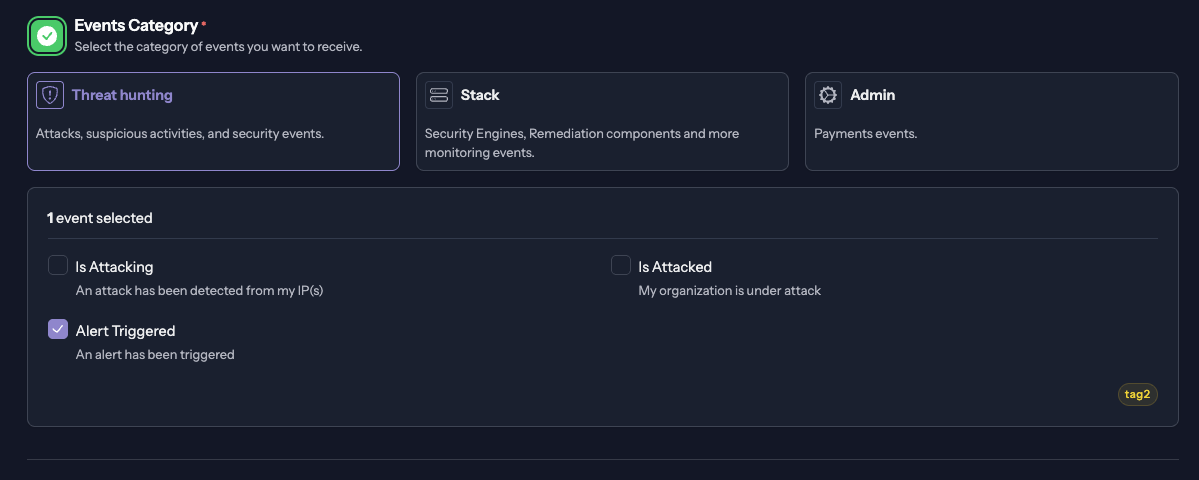
- Select the events you want to be notified about. You can only select one of the three categories at a time (Threat Hunting, Stack or Admin). Each of these categories contains a list of events that you can choose from. (The Threat Hunting category lets you select only one event, because its conditions differ from one event to another.)
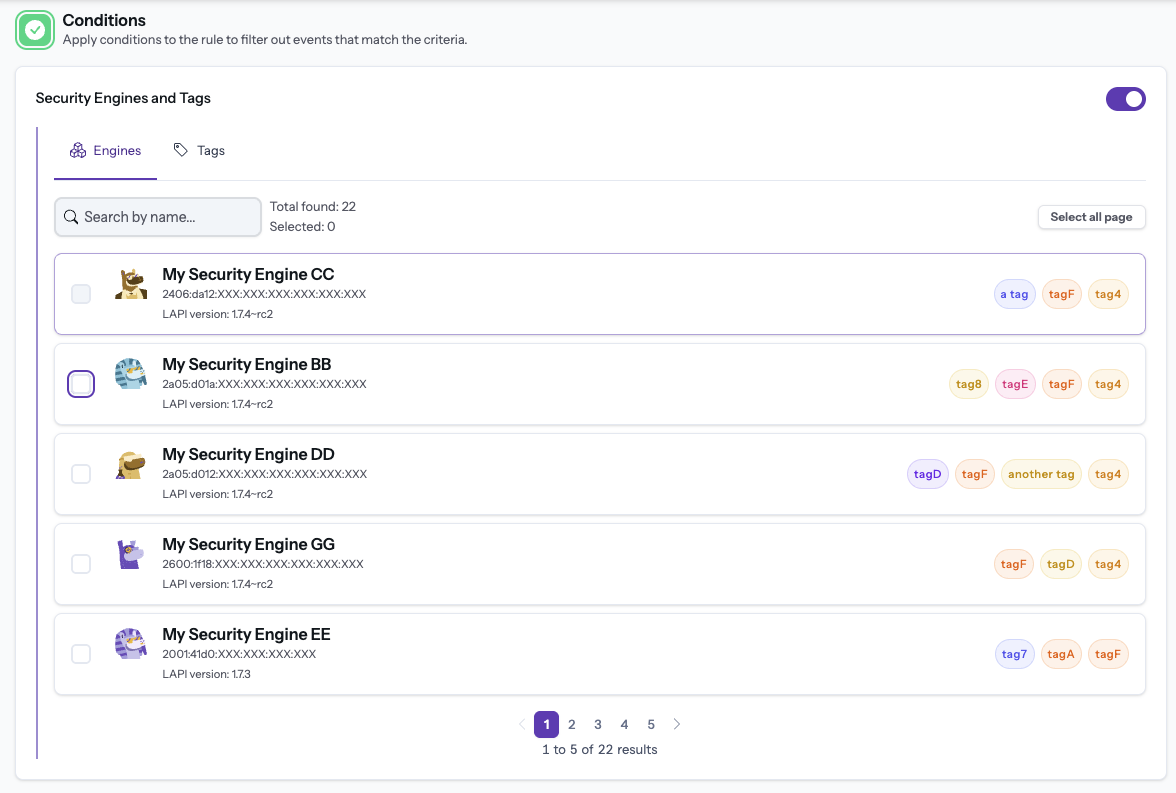
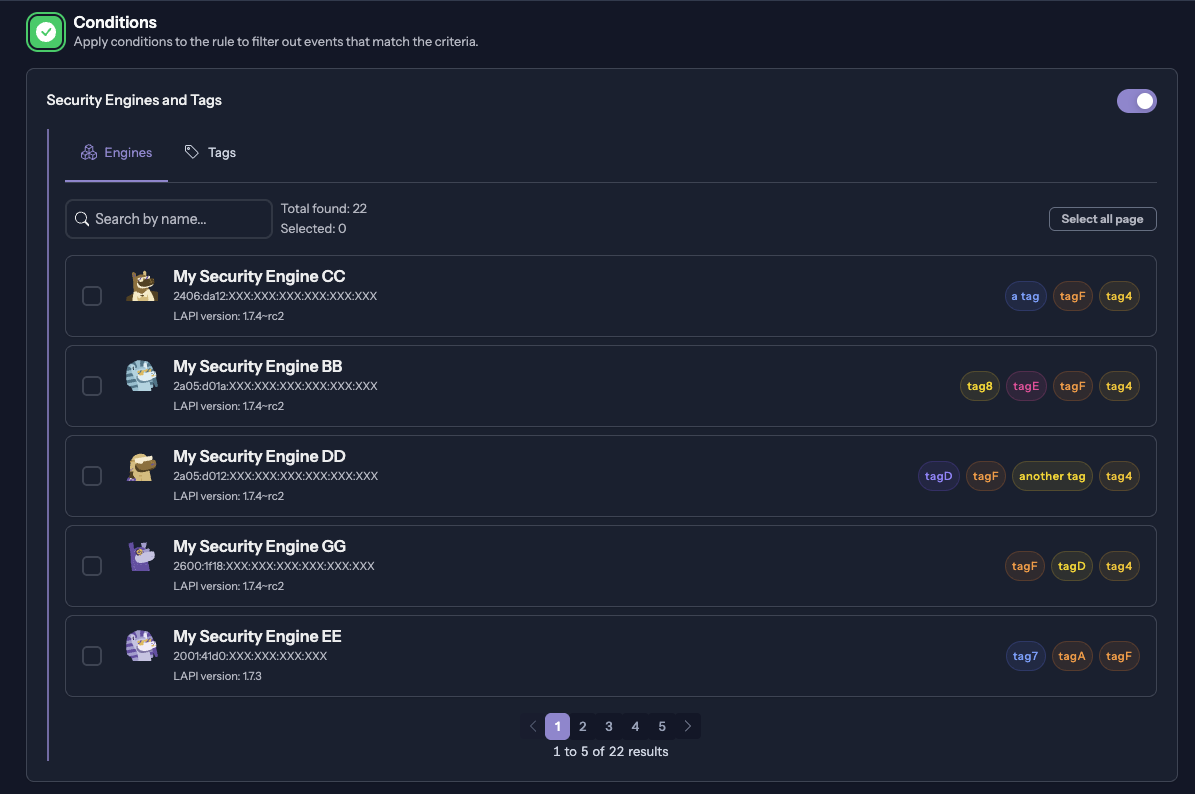
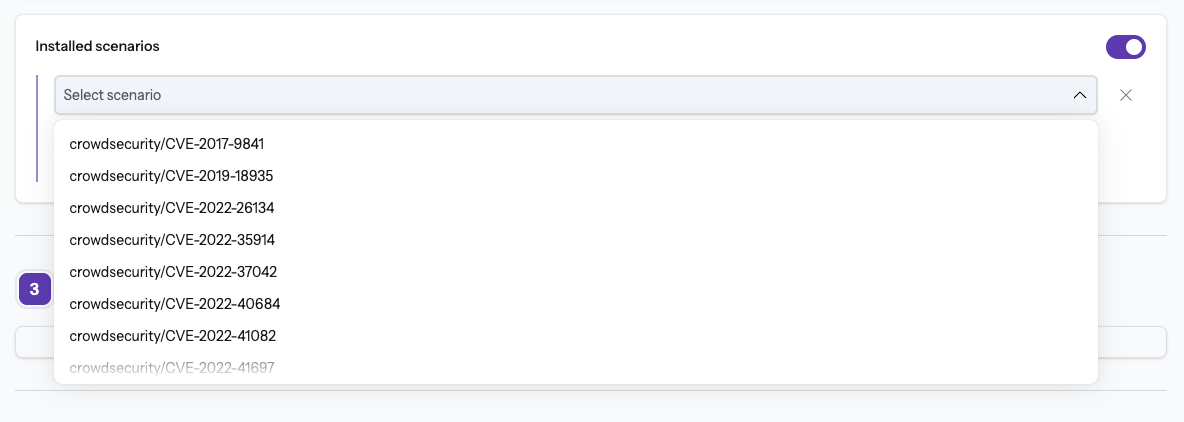
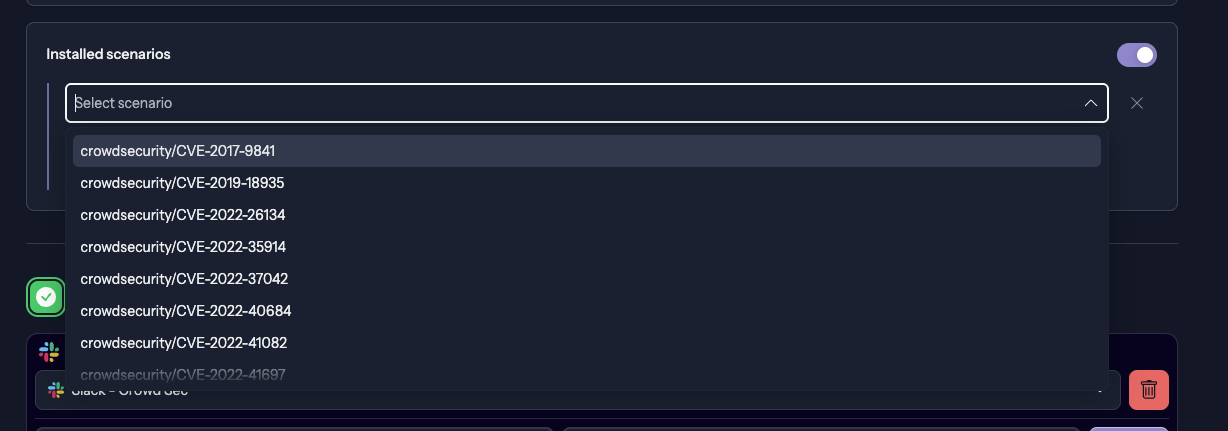
- (Optional) Select conditions. Stack category allows you to filter on Security Engine(s). Threat Hunting > Alert trigger event allows you to select specific scenarios.
Engine condition:
Installed scenarios:
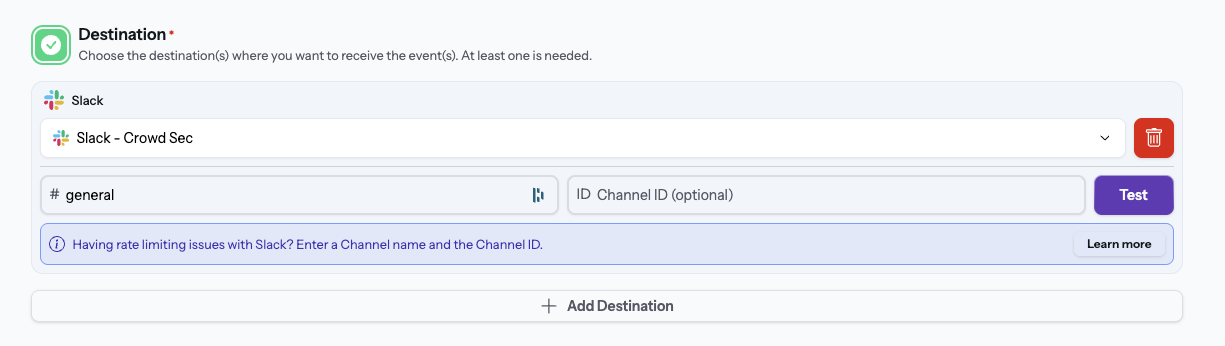
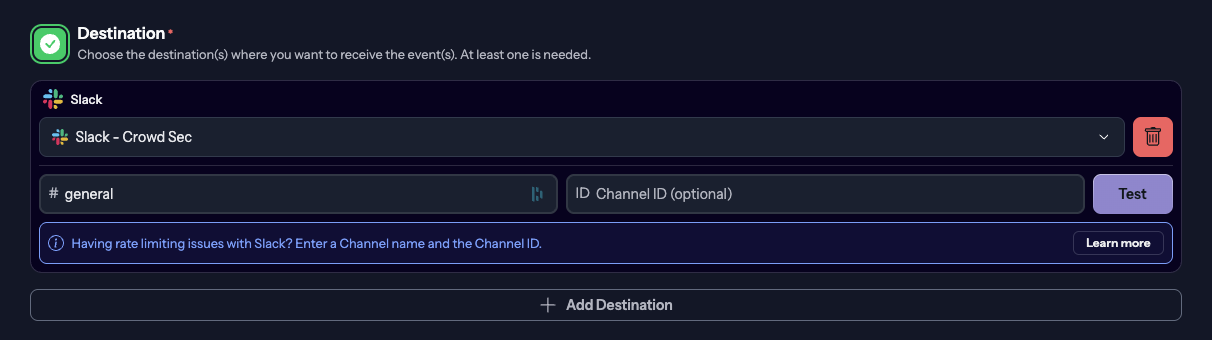
- Select destination, which is the integration you want to use for this rule. You can select multiple destinations for one rule. Destination input varies depending on the integration you selected. For example, the Slack integration lets you select a channel, while the Webhook integration lets you select a URL.
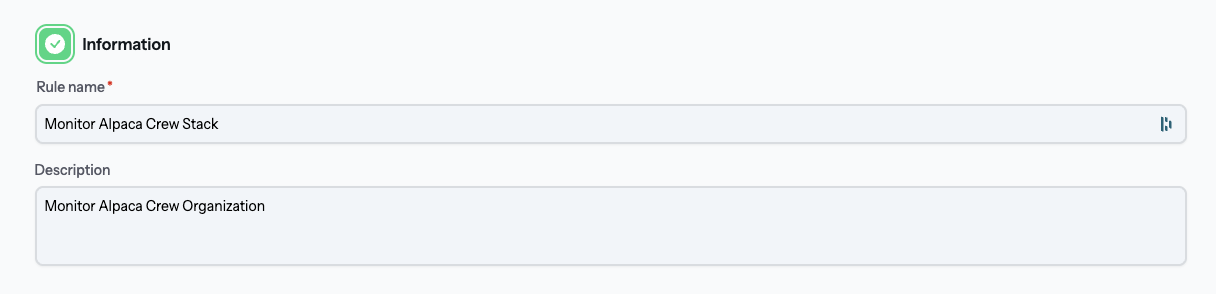
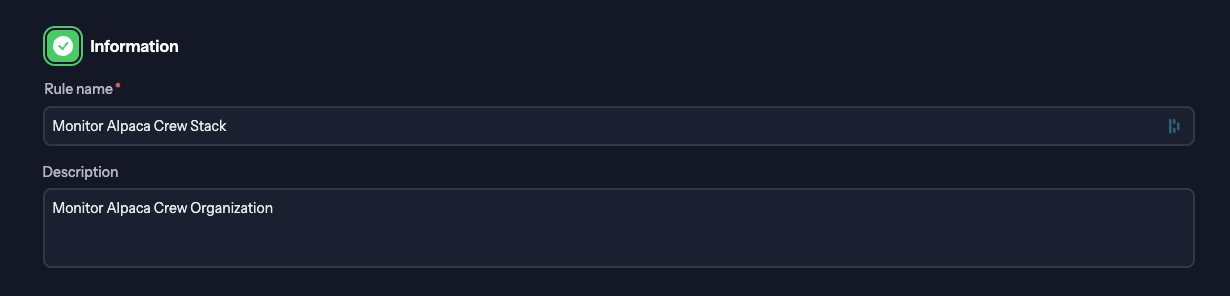
- Name and describe your rule.
-
Click on Create to save your rule.
-
Your rule will now appear in the list of notification rules for your integration. You can edit or delete it at any time.