Web Interface
Overview
The Live Exploit Tracker web interface provides a dashboard for browsing tracked vulnerabilities, assessing their severity, viewing attacker IPs, and managing firewall integrations — all without writing a line of code.
It exposes the same data as the API in a visual format designed for SOC analysts and security managers.
Getting Access
To access the web interface, you need an API key. Contact the CrowdSec team to obtain yours if you haven't already.
Once you have your key, navigate to https://tracker.crowdsec.net and open Settings from the left sidebar to enter your API key.
Navigation
The web interface is organized around a left sidebar with six sections:
| Section | Purpose |
|---|---|
| Home | Landing page with key stats, trending threats, and most active CVEs |
| Explore | Browse and search all tracked CVEs and Reconnaissance rules |
| Vendors | Browse affected vendors and their exposure across the threat landscape |
| Integrations | Create and manage firewall integrations for automated IP blocking |
| Activity | View recent exploitation activity |
| Bookmarks | Quick access to CVEs, Reconnaissance rules, and vendors you've bookmarked |
Home
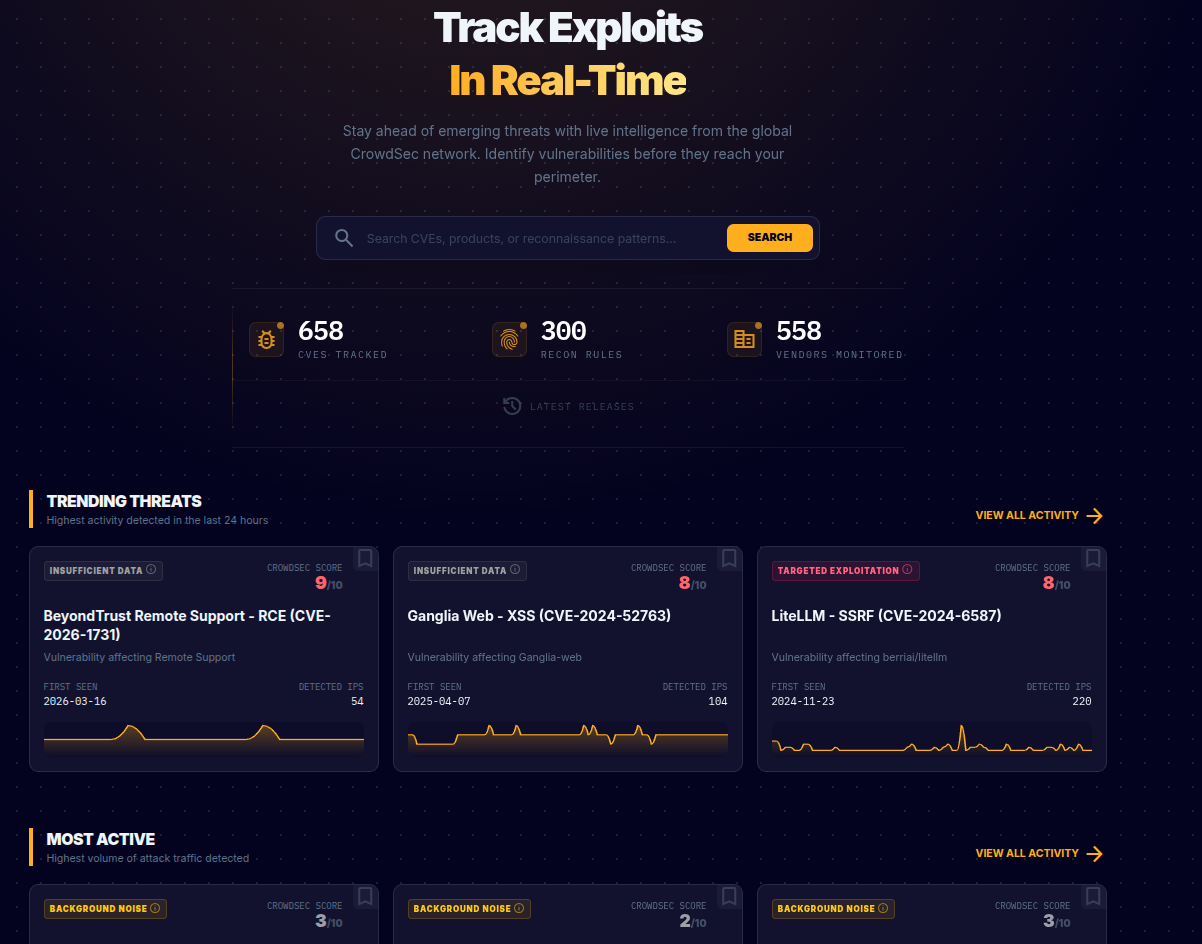
The home page provides an at-a-glance overview of the threat landscape:
- Key statistics: Total CVEs tracked, Reconnaissance rules active, and vendors monitored
- Search: Search across CVEs, products, or reconnaissance patterns from a single search bar
- Trending Threats: CVEs with the highest activity in the last 24 hours, shown as cards with exploitation phase badges, CrowdSec Scores, first-seen dates, IP counts, and sparkline activity charts
- Most Active: CVEs with the highest overall volume of attack traffic
Each threat card shows the exploitation phase as a colored badge (e.g., "ACTIVE EXPLOITATION", "BACKGROUND NOISE"), the CrowdSec Score, and a miniature activity chart so you can quickly spot trends.
Explore
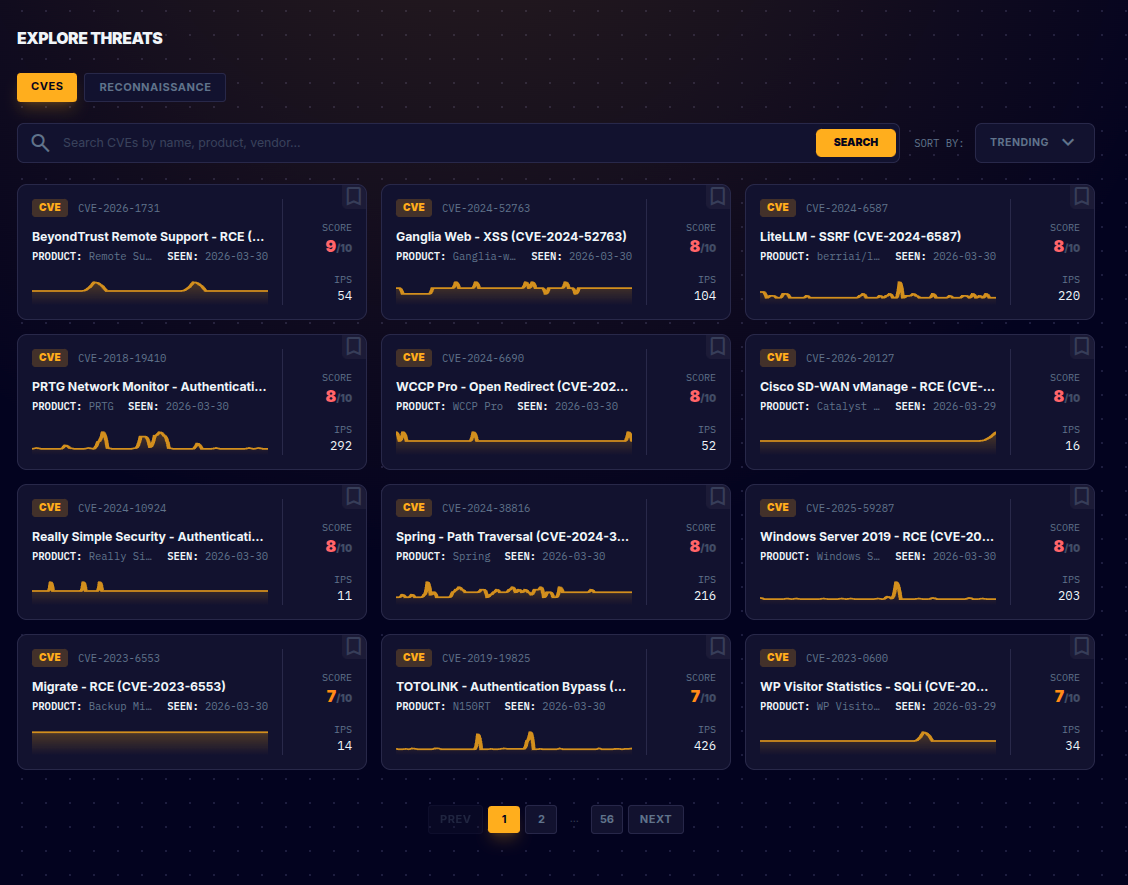
The Explore page is the main interface for browsing and searching all tracked threats. It has two tabs:
CVEs Tab
Displays all tracked CVEs as a grid of cards. Each card shows:
- CVE badge and ID (e.g.,
CVE-2022-38840) - Title (e.g., "Gucralp - XXE")
- Product affected
- Last seen date
- CrowdSec Score (0–10)
- Active IPs count
- Activity sparkline showing recent exploitation trend
- Bookmark icon to save for quick access
Use the search bar to find CVEs by ID, name, product, or vendor. Use the Sort by dropdown to order results by Trending (highest CrowdSec Score), Most IPs, newest, or alphabetically.
Reconnaissance Tab
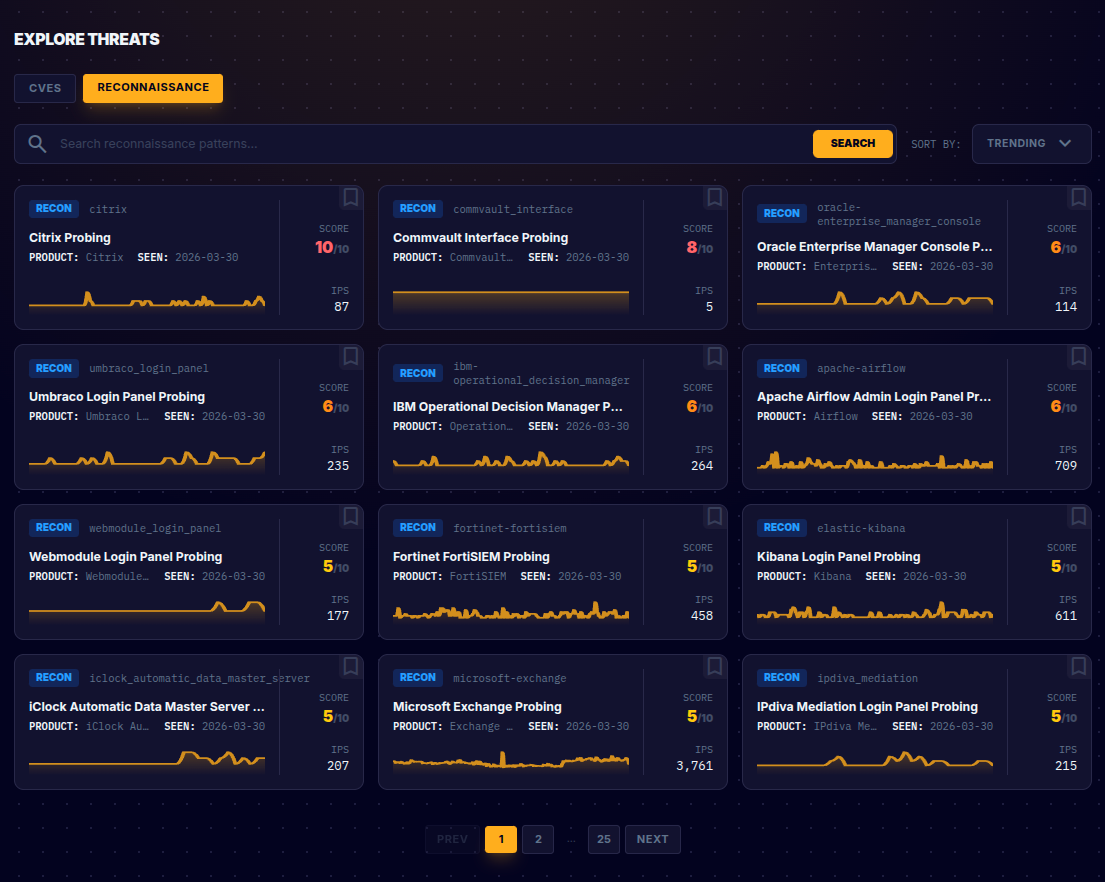
Displays all Reconnaissance rules — detection patterns for product-level probing activity. See Fingerprints vs CVEs for the difference between CVEs and Reconnaissance rules.
Cards use the same layout as CVEs but with a "RECON" badge and a rule ID (e.g., microsoft-exchange). Titles follow the pattern "[Product] Probing" (e.g., "Matomo Panel Probing", "Oracle Enterprise Manager Console Probing").
Reconnaissance rules are called "fingerprint rules" in the API. The web interface and API expose the same data — only the terminology differs.
CVE Detail Page
Clicking on a CVE card opens its full detail page.
Header
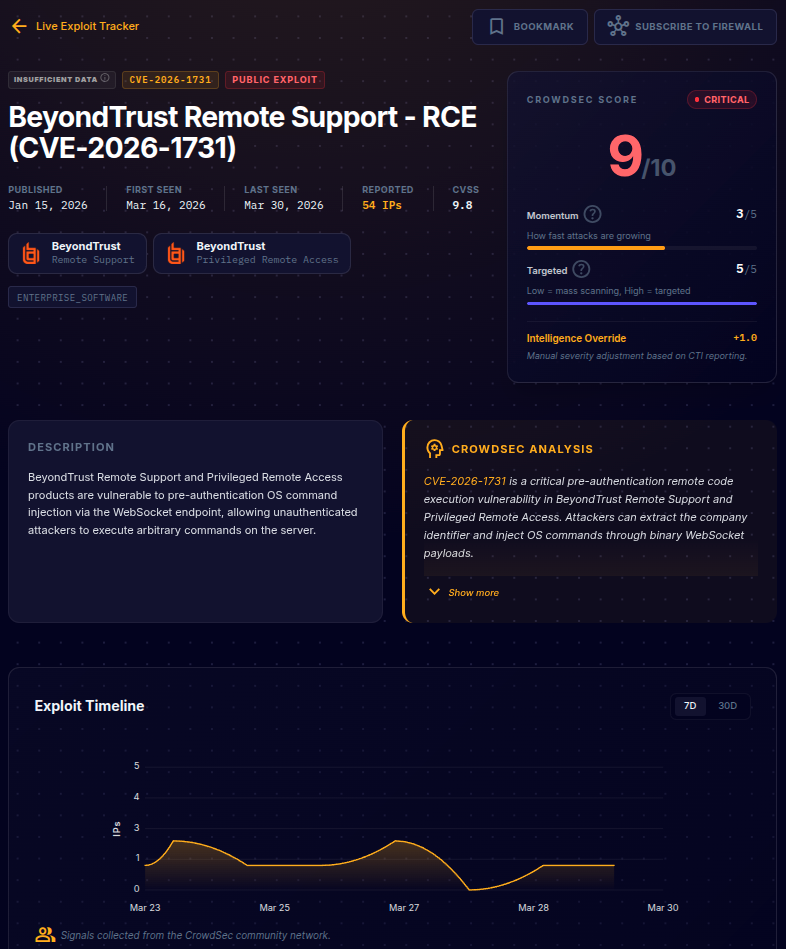
The top of the page shows:
- Phase badge: The current exploitation phase as a colored label (e.g., "ACTIVE EXPLOITATION")
- CVE ID badge and PUBLIC EXPLOIT indicator (if a public exploit exists)
- Title: Human-readable vulnerability name
- Key dates: Published, First Seen, Last Seen
- Reported IPs: Total count of attacker IPs (linked to the Active Attackers section)
- CVSS score
- Affected product and vendor
- Tags: Technology categories (e.g.,
iot,cms,enterprise_software) - Bookmark and Subscribe to Firewall buttons in the top right
Scores Panel
A dedicated panel on the right side of the header displays:
- CrowdSec Score (0–10) with a severity label (e.g., "CRITICAL", "HIGH")
- Momentum (0–5): How fast attacks are growing. Shown with a progress bar.
- Targeted (0–5): How targeted vs. opportunistic the attacks are ("Low = mass scanning, High = targeted"). Shown with a progress bar.
See Scores & Ratings for detailed interpretation of these values.
The Targeted score in the web interface corresponds to the Opportunity Score in the API. They measure the same thing — how deliberately attackers are selecting their targets.
Description and CrowdSec Analysis
Displayed side by side below the header:
- Description: The official CVE description from the NVD
- CrowdSec Analysis: A human-readable intelligence narrative covering the vulnerability's nature, observed exploitation patterns, trend analysis, and specific technical indicators. Click "Show more" to expand the full analysis.
See CrowdSec Analysis for how to use this in triage and reporting.
Exploit Timeline
An interactive chart showing exploitation activity over time. Toggle between 7D (last 7 days) and 30D (last 30 days) views. The Y-axis shows the number of distinct IPs observed, and the X-axis shows time.
Use this to spot:
- Sudden spikes indicating a new campaign launching
- Sustained plateaus indicating persistent attacker interest
- Declining trends indicating the threat is fading
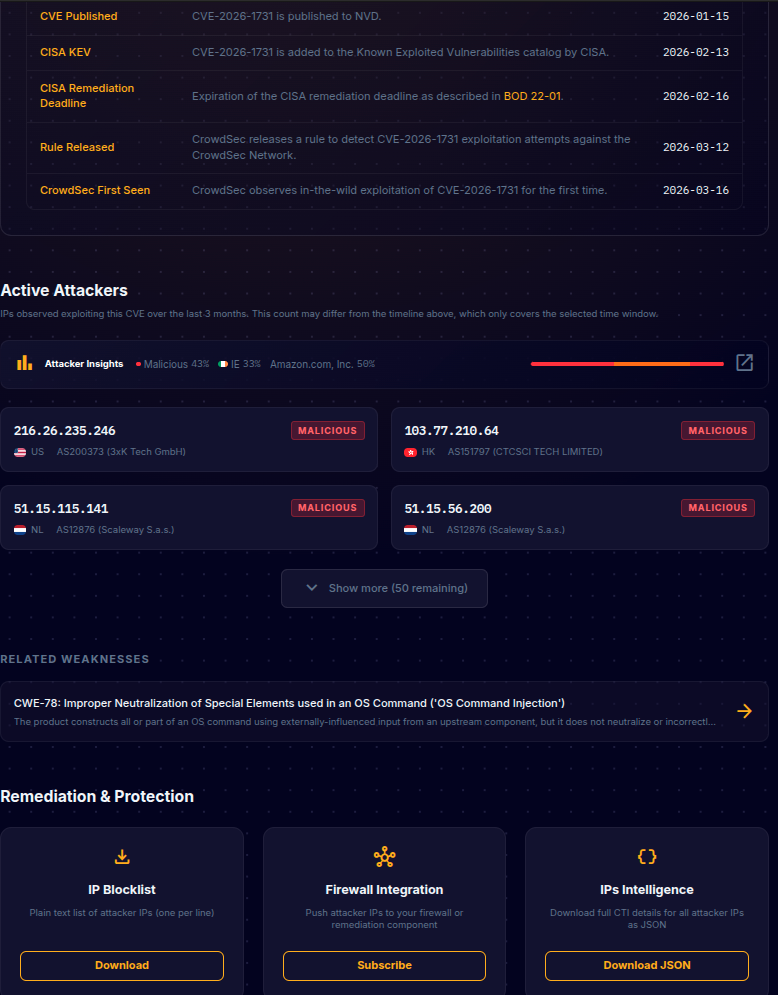
Key Events
A table of significant events in the CVE's lifecycle:
| Event | Description |
|---|---|
| CVE Published | When the vulnerability was disclosed in the NVD |
| Rule Released | When CrowdSec deployed a detection rule for this CVE |
| CrowdSec First Seen | When CrowdSec first observed real-world exploitation |
Active Attackers
A list of IP addresses observed exploiting this CVE over the last 3 months. Each IP card shows:
- IP address
- Reputation badge: "MALICIOUS", "SUSPICIOUS", etc.
- Country flag and code
- ASN (Autonomous System Number) and network name
Click "Show more" to expand the full list.
Attacker Insights
Click the Attacker Insights icon to open a detailed analytics modal that provides aggregate intelligence across all IPs exploiting this CVE:
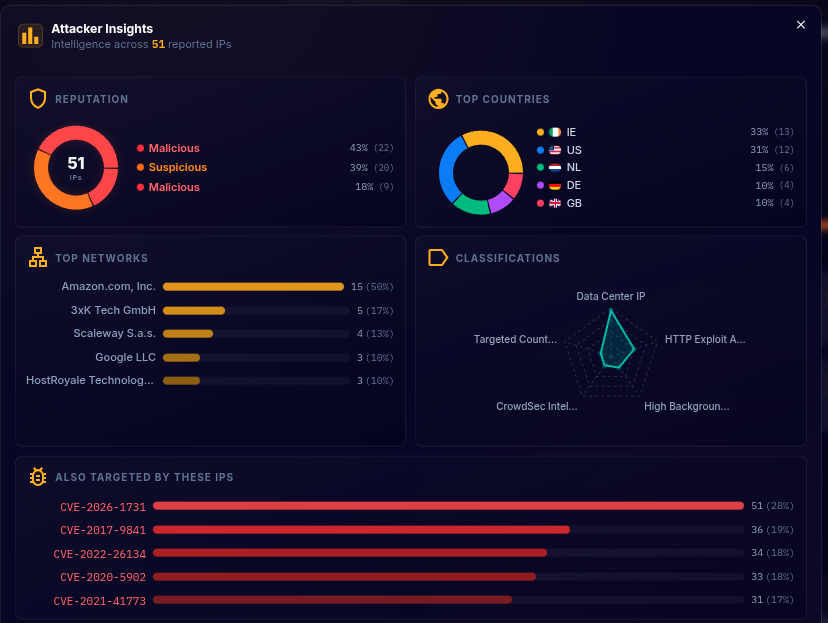
- Reputation breakdown: Donut chart showing the proportion of Malicious vs. Suspicious IPs
- Top Countries: Pie chart of the most common source countries
- Top Networks: Bar chart of the most common hosting providers and ASNs
- Classifications: Radar chart showing attacker categories (e.g., "Data Center IP", "HTTP Exploit Activity", "High Background Noise", "CrowdSec Intelligence")
- Also Targeted By These IPs: A cross-correlation showing which other CVEs are being exploited by the same set of attackers — useful for identifying broader campaigns
Related Weaknesses
The CWE (Common Weakness Enumeration) classifications associated with this CVE, with descriptions. Click through for more information about the weakness class.
Remediation & Protection
Three action cards at the bottom of the detail page:
| Action | Description |
|---|---|
| IP Blocklist — Download | Download a plain text list of attacker IPs (one per line) for manual import into security tools |
| Firewall Integration — Subscribe | Subscribe a firewall integration to this CVE for automatic, ongoing IP blocking |
| IPs Intelligence — Download JSON | Download full CTI details for all attacker IPs as a JSON file for analysis or SIEM import |
Vendors
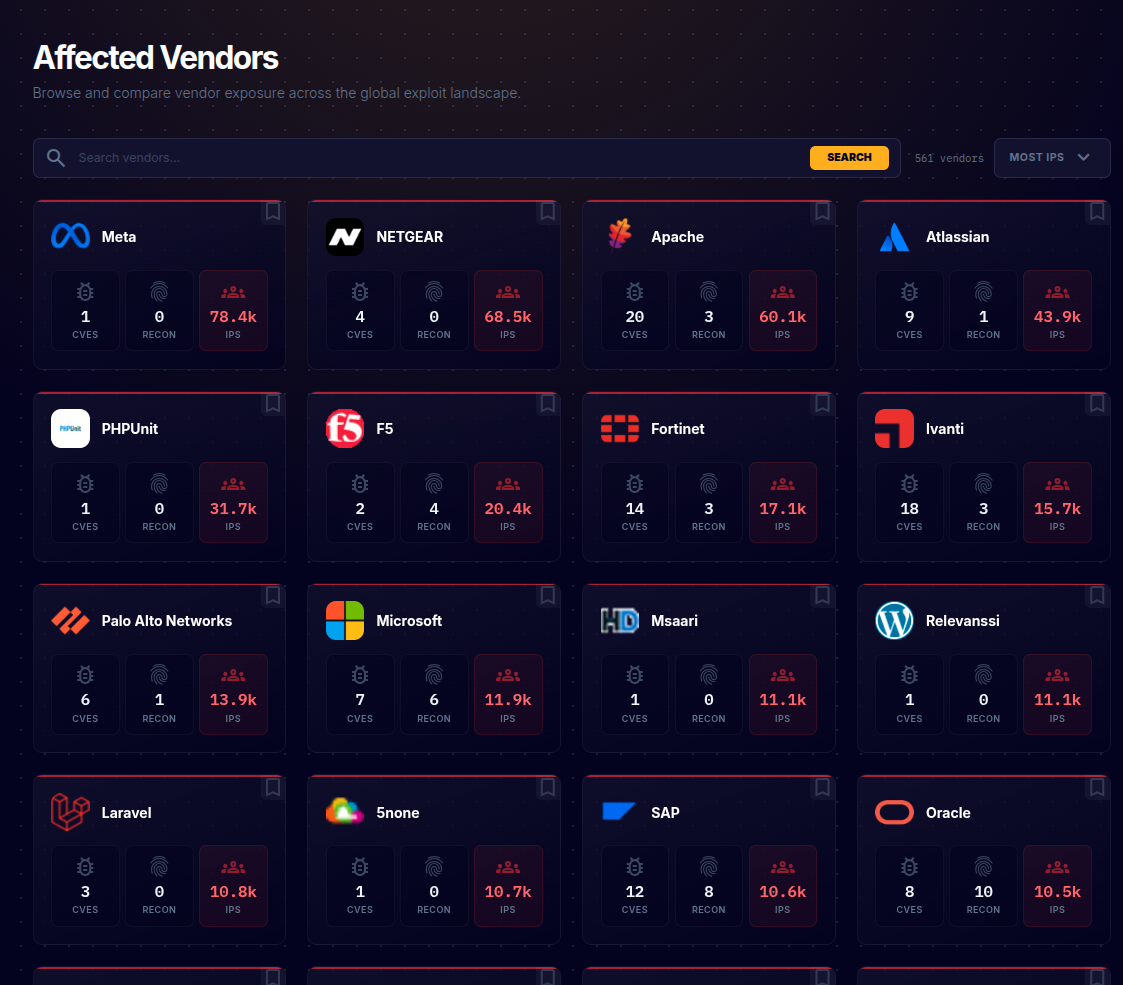
The Vendors page lets you browse and compare vendor exposure across the global exploit landscape.
Each vendor card displays:
- Vendor name and logo
- CVE count: Number of tracked CVEs affecting this vendor's products
- Recon count: Number of Reconnaissance rules detecting probing of this vendor's products
- IPs: Total number of attacker IPs observed targeting this vendor
- Bookmark icon
Use the search bar to find a specific vendor and the Sort by dropdown to order by Most IPs, Most CVEs, or alphabetically.
Clicking a vendor card shows all CVEs and Reconnaissance rules affecting their products. From the vendor detail page, you can subscribe a firewall integration to the vendor, which automatically covers all current and future CVEs and reconnaissance rules for that vendor's products.
Integrations
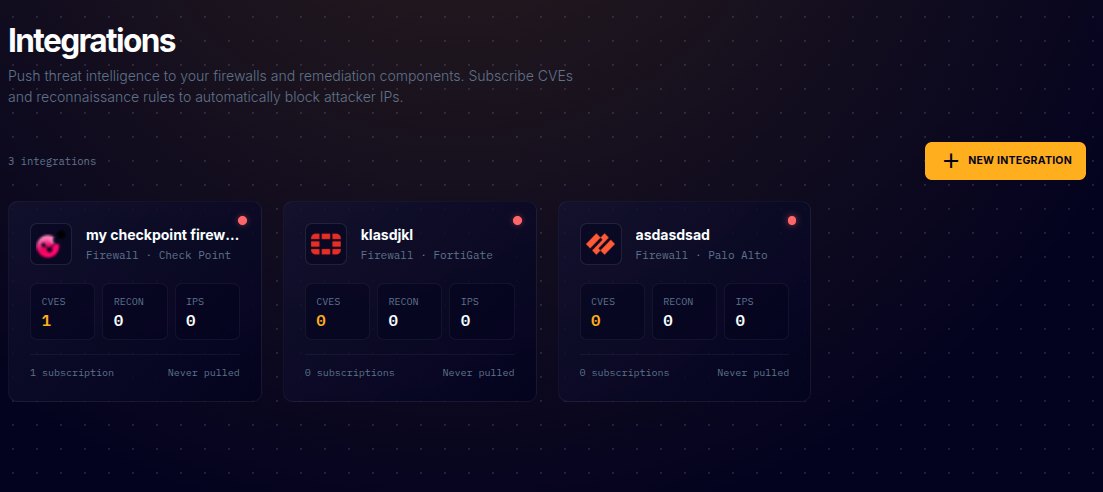
The Integrations page is where you create and manage connections to your firewall infrastructure for automated IP blocking.
Each integration card shows:
- Name and type (e.g., "Firewall · Check Point", "Firewall · FortiGate", "Firewall · Palo Alto")
- Vendor icon matching the firewall type
- Subscription counts: How many CVEs and Recon rules are subscribed
- IPs: How many IPs the integration's blocklist currently contains
- Subscription count and last pulled status
Creating an Integration
- Click + NEW INTEGRATION in the top right
- Choose a name and select the output format matching your firewall vendor
- Save the integration and securely store the generated credentials — they are only shown once
Subscribing to Vendors, CVEs, and Reconnaissance Rules
There are several ways to subscribe an integration:
Subscribe to a vendor (recommended for broad coverage): From a vendor's detail page, click the SUBSCRIBE TO FIREWALL button. This subscribes the integration to all current and future CVEs and reconnaissance rules for that vendor's products. When a new threat is added for the vendor, your blocklist is updated automatically.
From the CVE/Recon detail page: Click the SUBSCRIBE TO FIREWALL button in the top right of any CVE or Reconnaissance rule detail page, then select the integration to subscribe.
From the Remediation & Protection section: Scroll to the bottom of a CVE detail page and click Subscribe under the Firewall Integration card.
The integration's blocklist will now include all IPs observed exploiting the subscribed CVEs, matching the subscribed Reconnaissance rules, or targeting the subscribed vendors' products. As new IPs are observed, they are automatically added.
Consuming the Blocklist
Your firewall fetches the blocklist from the integration's unique URL at regular intervals. See the CrowdSec Integrations documentation for vendor-specific setup guides.
Bookmarks
The Bookmarks page provides quick access to CVEs, Reconnaissance rules, and vendors you've bookmarked. Click the bookmark icon on any card throughout the interface to save it here.
Activity
The Activity page shows recent exploitation activity across all tracked threats, providing a feed of notable events and changes.